Gaming Console IPTV 4K Setup: PS5 & Xbox Series X 2026 Guide
August 27, 2026 · 9 min read
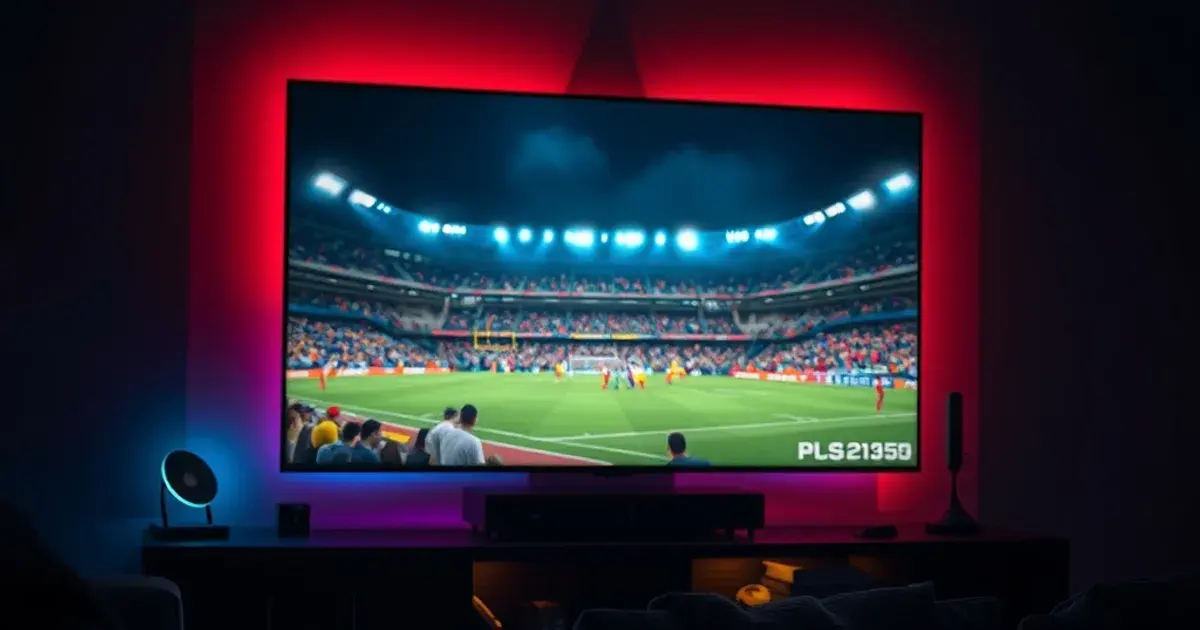
Fall 2026 sports season launches in three days, and a lot of cord-cutters are about to find out their gaming console can double as a serious streaming box. IPTV adoption has climbed to roughly 54% of viewers versus 28% still on traditional cable, and with 82% of US households already on smart TVs and more than 40 million PS5 units sitting in living rooms, the console is quietly becoming a default 4K screen for sports — whether people planned it that way or not.
The problem is that most guides treat PS5 and Xbox Series X as interchangeable, when they're not even close. Xbox Series X runs on a version of Windows with a real Microsoft Store, so installing a media app is close to installing one on a laptop. PS5 is a closed platform with a curated app catalog and no general sideloading, which means the 'just open the store and install it' advice that works for Xbox simply doesn't apply. Nobody covering this topic actually walks through that gap, or connects it to the fact that both consoles already have better 4K/HDR output hardware sitting under the TV than most people's smart TV apps use.
This guide treats PS5 and Xbox Series X setup as two separate problems, because they are. It also covers the network and settings work that determines whether your 4K stream actually looks like 4K during a live game. For the broader account and plan basics, our VeoTT subscription guide (/blog/veott-subscription-guide) is the starting point — this article picks up from there and focuses entirely on the console side.
Why Gamers Are Ditching Cable: IPTV on Next-Gen Consoles in 2026
Console owners already paid for the hardware that makes 4K sports look good: a fast HDMI 2.1 output, HDR tone mapping, and a chip that decodes high-bitrate video without breaking a sweat. The irony is that most people only use that hardware for games and then switch to a separate streaming stick or smart TV app for everything else — often a weaker one.
The shift toward IPTV isn't really about novelty. It's about not paying for a second box when the console in the room is more capable than a $40 streaming stick. As cable penetration keeps sliding and IPTV keeps growing, the console becomes an obvious second use case, especially heading into a season where football is on multiple nights a week.
The catch is that game consoles were designed for games first, general apps second — and Sony and Microsoft made very different decisions about how open that 'second' is. That difference is the whole reason this guide splits PS5 and Xbox into separate playbooks instead of treating them as one.
Not sure which console setup fits your living room?
PS5 vs Xbox Series X for IPTV: Which Is Easier to Set Up?
Xbox Series X is, in practical terms, a Windows device with a controller. It runs Universal Windows Platform (UWP) apps through the Microsoft Store, which is the same store ecosystem Windows PCs use. That means media and streaming apps that support UWP install and behave in a genuinely familiar way — you search, install, sign in, and go.
PS5 is built differently. Sony curates its app catalog tightly, there's no general sideloading path for third-party apps, and the console's built-in web browser is hidden behind an unofficial activation method that Sony doesn't support or document. In plain terms: if an IPTV-friendly app isn't already approved for the PlayStation Store, you don't have a clean first-party way to install one.
So the honest verdict is: Xbox Series X is easier to set up for IPTV because it behaves like a small PC. PS5 is not built for this use case and requires workarounds — which is exactly the gap most 'gaming console IPTV' articles skip past instead of explaining clearly.
Xbox Series X IPTV Setup: Step-by-Step with Microsoft Store Apps
Start on the Xbox home screen and open the Microsoft Store app. Search for a media player that supports UWP and handles playlist or streaming URL input — VLC and Plex are the two most consistently available options on Xbox, and both accept external content sources rather than only local files.
Install the app, sign in if it requires an account, and load your VeoTT playlist or credentials the same way you would on any other player. If the app supports live TV or streaming URLs directly, you won't need any extra hardware — the console handles decoding on its own.
Before your first watch, go into Settings > General > TV & Display Options and confirm the console is outputting at 4K with HDR enabled if your TV supports it, and that Auto HDR / color format matches your display rather than defaulting to a generic profile. A console set to output below its ceiling is the single most common reason '4K' streams don't actually look like 4K.
One caveat worth stating plainly: not every IPTV-compatible player is listed in the Microsoft Store, and availability changes over time as Microsoft's certification requirements shift. Check current listings before assuming a specific app is there.
PlayStation 5 IPTV Setup: Web Browser & Plex Methods Explained
On PS5, Plex is currently the most reliable first-party path — it's an approved PlayStation Store app, it supports live and on-demand streaming sources, and it doesn't require any unofficial workaround. If your setup can route through Plex, that's the cleanest option by a wide margin.
There is also a well-known method for enabling PS5's hidden internal browser to load a web-based player, but it's unsupported by Sony, not guaranteed to persist across firmware updates, and inconsistent in performance for live streaming. Treat it as a fallback, not a primary plan — this is exactly the kind of 'workaround' competitors mention in passing without explaining that it's unreliable by design, not by accident.
If neither option fits your provider setup cleanly, the most dependable fix is pairing the PS5 with a second HDMI input on the same TV running a proper streaming device — which is really a signal that PS5, on its own, isn't the right primary box for daily IPTV viewing the way Xbox Series X can be.
Unlocking 4K Streaming on Your Console: Network & Settings Guide
A 4K label on a stream means nothing if the network underneath it can't sustain the bitrate during a live game, when everyone else's traffic spikes at the same time. Wired Ethernet from console to router is the single biggest reliability upgrade over Wi-Fi, especially in a house with multiple devices streaming during kickoff.
Beyond the cable, router QoS settings, having real bandwidth headroom above your stream's requirement, and an HDMI 2.1-rated cable all matter more than people expect. Our dedicated breakdown in the 4K IPTV optimization settings guide (/blog/4k-iptv-optimization-settings-guide) covers the router and player-side settings in more depth than we can fit here.
It's also worth checking your ISP's behavior specifically around high-traffic sports windows — some providers apply throttling patterns that only show up during peak live events, not during a quick test stream on a Tuesday afternoon. We cover how to spot and work around that in preventing ISP throttling during live sports (/blog/prevent-isp-throttling-iptv-sports-2026), which is worth reading before the season gets going.
Best IPTV Apps for PS5 and Xbox (Plex, VLC, and What Actually Works)
On Xbox, VLC and Plex are the two most console-friendly, consistently available players, both capable of handling external streams rather than only local media files. Kodi has appeared and disappeared from the Microsoft Store at different points, so its availability is worth checking rather than assuming.
On PS5, Plex remains the standout because it's officially supported, while browser-based players are the fallback rather than the recommendation. This is a narrower field than Fire TV or Android-based devices offer, which have a much wider app ecosystem built specifically for IPTV playback.
If you're weighing consoles against dedicated streaming hardware, our full breakdown of the best IPTV player apps for sports in 2026 (/blog/best-iptv-player-app-sports-2026-comparison) compares consoles alongside Fire TV, Apple TV, and Android boxes so you can see where each device actually stands out.
Game Day Checklist: Stream Football in 4K Without Buffering
Run through this before kickoff, not during it: confirm your console isn't mid-way through a pending system update (these can throttle background bandwidth or force a restart), close any game downloads or cloud saves syncing in the background, and do a quick test stream at least 30 minutes early rather than at first whistle.
Check that your Ethernet connection is active if you set one up, and confirm your display is still outputting at the resolution and HDR mode you configured — some TVs reset picture settings after firmware updates. Have a backup plan ready: a phone hotspot or a secondary device on standby costs nothing and saves the night if your home connection has an issue mid-game.
For a fuller pre-kickoff routine built specifically around opening week, see our NFL Week 1 2026 streaming setup checklist (/blog/nfl-week-1-2026-streaming-setup-checklist), which walks through timing your checks around actual kickoff windows rather than generic 'test it sometime' advice.
Get your console streaming in 4K before kickoff.
Gaming Console vs Fire TV vs Apple TV: Which Wins for Sports?
For raw 4K/HDR output and a screen you already have wired up, Xbox Series X and PS5 hold their own against dedicated streaming boxes — the silicon is not the limiting factor. The limiting factor is app ecosystem, and that's where Fire TV and Apple TV pull ahead: both are built specifically as media platforms, with far broader IPTV app support and none of PS5's sideloading restrictions.
Apple TV in particular has become a strong option for IPTV viewers who want a clean, reliable native app experience without workarounds — we cover the setup in detail in the Apple TV IPTV setup guide (/blog/apple-tv-iptv-setup-guide).
The realistic recommendation: if you own an Xbox Series X, it can reasonably serve as your primary sports box using the Microsoft Store apps above. If you own a PS5 and want a stress-free daily setup, keep the console for gaming and add a Fire TV or Apple TV on a second HDMI input for IPTV — you'll spend less time fighting workarounds and more time actually watching the game.
Frequently asked questions
Can I install any IPTV app directly on PS5?
Not in the way you can on Xbox or a phone. PS5 only allows apps approved for the PlayStation Store — there's no general sideloading. Plex is the most reliable officially supported option; other methods, like enabling the hidden browser, are unofficial workarounds rather than a supported install path.
Does Xbox Series X support 4K60 IPTV streaming natively?
The hardware supports 4K output with HDR, and apps like VLC and Plex can play high-bitrate streams. Whether you actually see smooth 4K60 depends on your source stream's quality, your network (wired is strongly recommended), and confirming the console's display settings are set to 4K/HDR rather than a default lower profile.
Do I need a wired connection for 4K sports streaming on console?
It's not strictly required, but it's the single biggest reliability upgrade, especially during live games when Wi-Fi congestion from other devices peaks at the same time as everyone else's. If your router is far from the console, a powerline or MoCA adapter is a reasonable substitute for running a cable.
Is Plex a good IPTV solution for consoles?
Yes — it's currently the most consistent, officially supported option on both PS5 and Xbox Series X, which matters most on PS5 where alternatives are limited. It won't necessarily match every feature of a dedicated IPTV player app, but it's the most dependable starting point on console.
What's the easiest way to get IPTV on PS5 if there's no compatible app?
Add a low-cost streaming device — Fire TV Stick or Apple TV — to a second HDMI input on the same television. It sidesteps PS5's closed app ecosystem entirely and gives you access to a much wider range of IPTV apps than the console alone can offer.
Read next: the pricing page or the FAQ.